


Ask a client to send you files over email and it’s just a matter of time before you run into issues like file size limits or lose those email attachments in long threads. There are a few other ways you can request files from clients, and a popular option is to use a shared drive like Dropbox.
Spare yourself the time wasted searching for attachments deep in your lengthy email threads. When you use Content Snare, clients can upload large files to you directly through the platform.
Dropbox file requests are an easy way to receive large files from your clients. The Dropbox feature is easy for your clients to use, and doesn’t require them to have a Dropbox account to submit files.
The Dropbox file request size limit is 2 GB for basic users. However, clients who use paid plans (Pro, Standard, Advanced, Enterprise) have a Dropbox file size limit of up to 50 GB.
Here’s a step-by-step guide on how to use Dropbox to receive files, a couple of things to keep in mind, and another option to explore if you’re a business looking for a more powerful file request tool.
You need a Dropbox account to create a file request. Once you sign up for an account, log in to your Dropbox account.
Under the “files” heading on the left sidebar of the home page, select “file requests”.
On the new file requests page, click the blue “new request” button on the right.
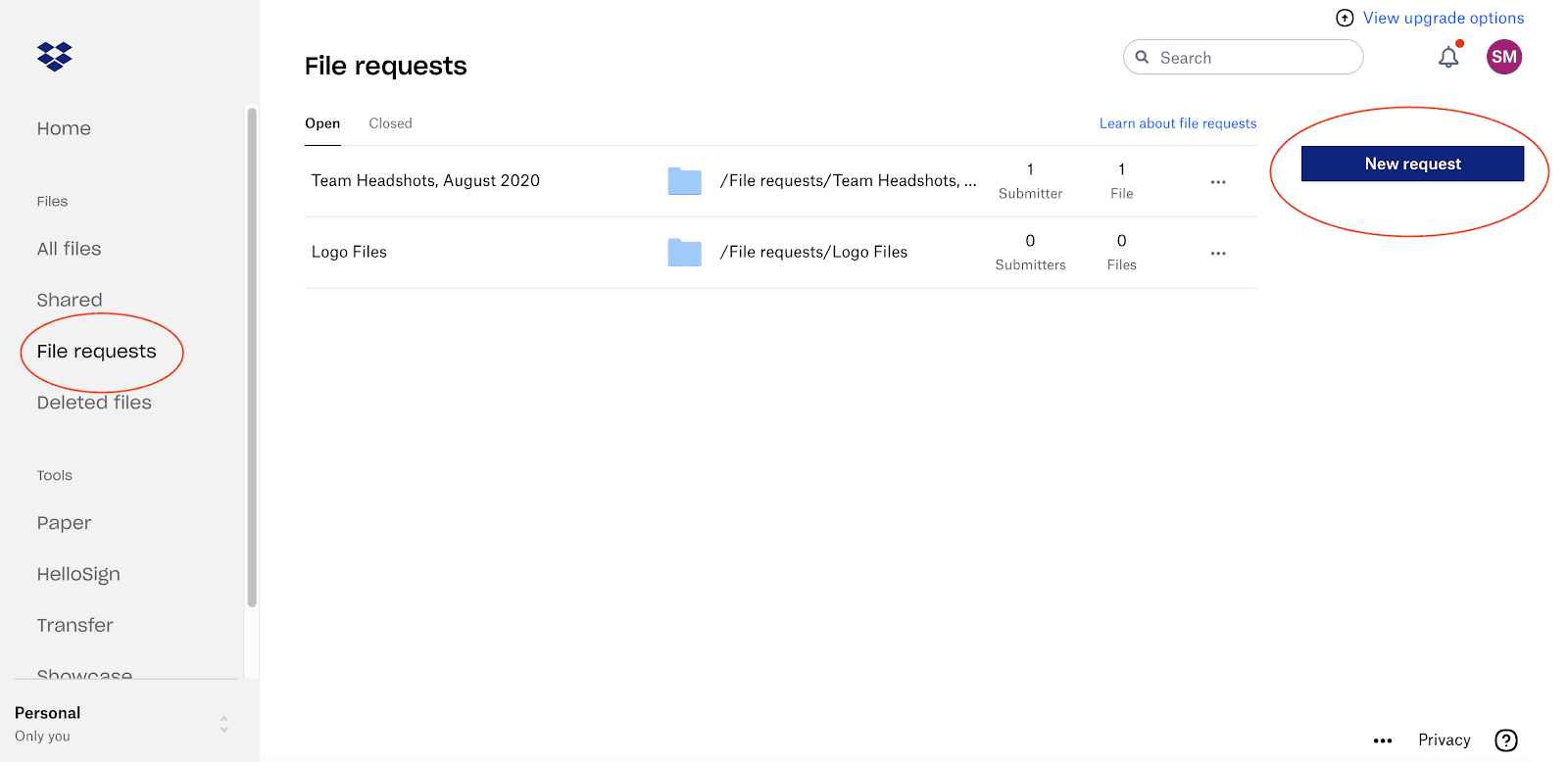
A “create new request” window will pop up asking you to fill in some fields.
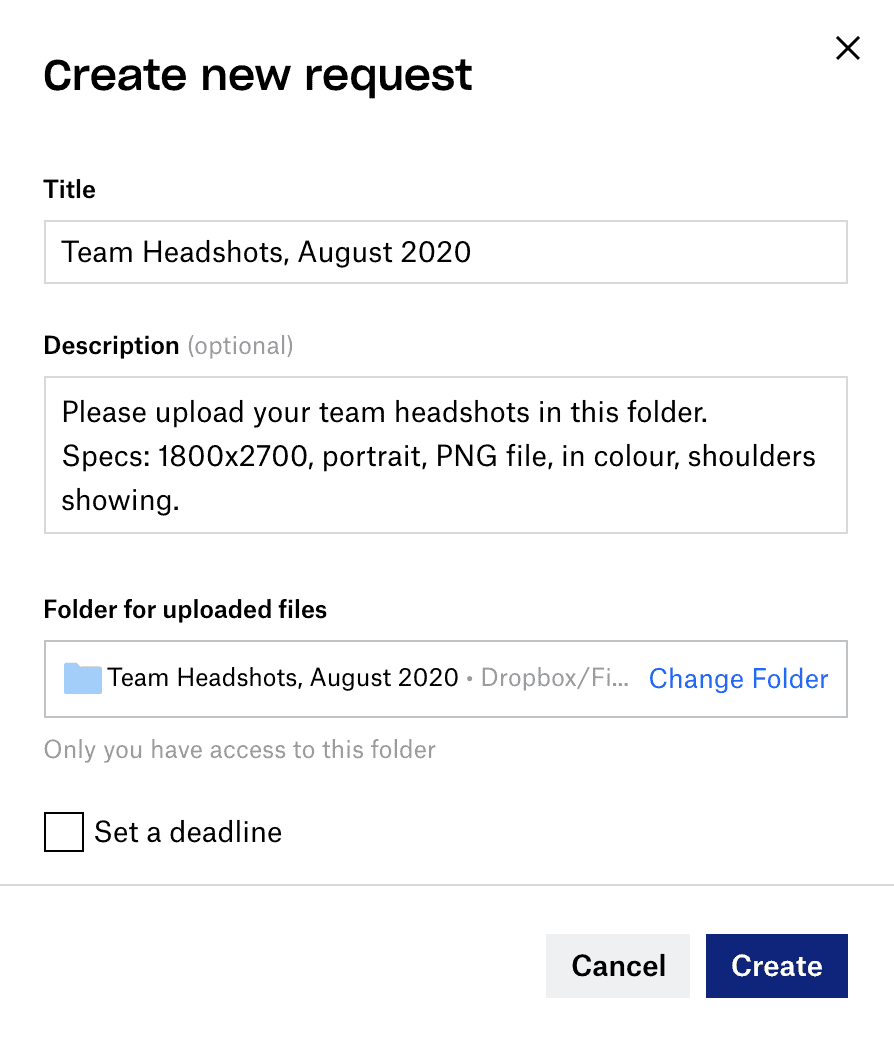
Here’s what to include in your request to make sure you get the right files from your clients:
It’s not a bad idea to be specific with this name to stay organized. If you’re requesting headshots, for example, name it “Headshot Photos, August 2020”.
You can specify things like:
- file type (PNG, not JPEG for instance)
- image size (minimum and maximum pixels)
- photo orientation (portrait vs landscape)
- a descriptive note like “make sure we can see your shoulders in the headshots.”
Dropbox selects “file requests” as the default folder, but you can select a different Dropbox folder manually if you click on “change folder”.
Activate this feature by checking the “set a deadline” box.
When you check the box, the window will expand to show you three more fields.Select your deadline date and deadline time by clicking on the downwards arrows next to each field.
You can then choose whether or not you want to allow late uploads past that deadline, and if so, how many days late you will accept the file request.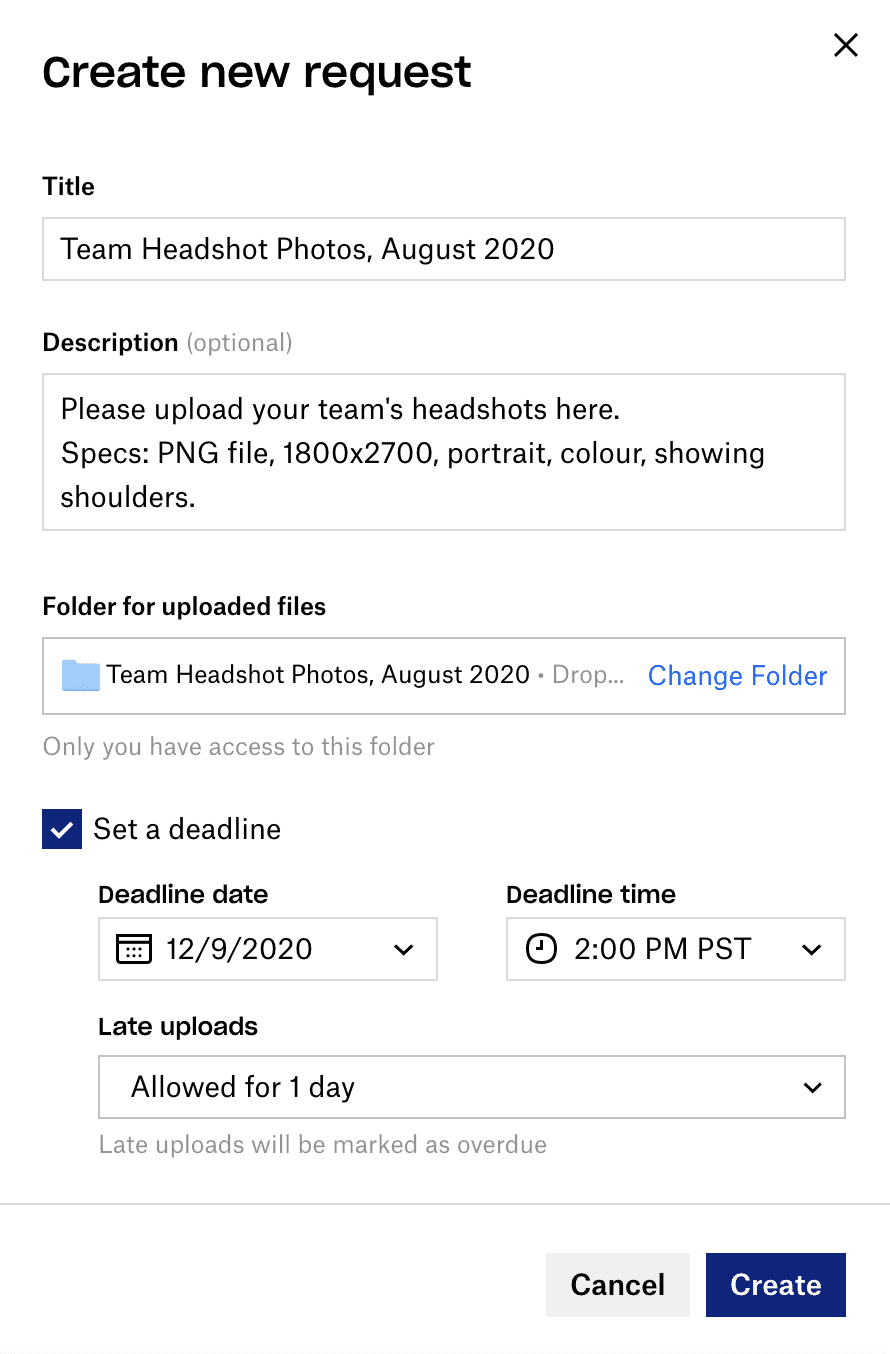
Once you have your fields in and your options selected, click the blue “create” button.
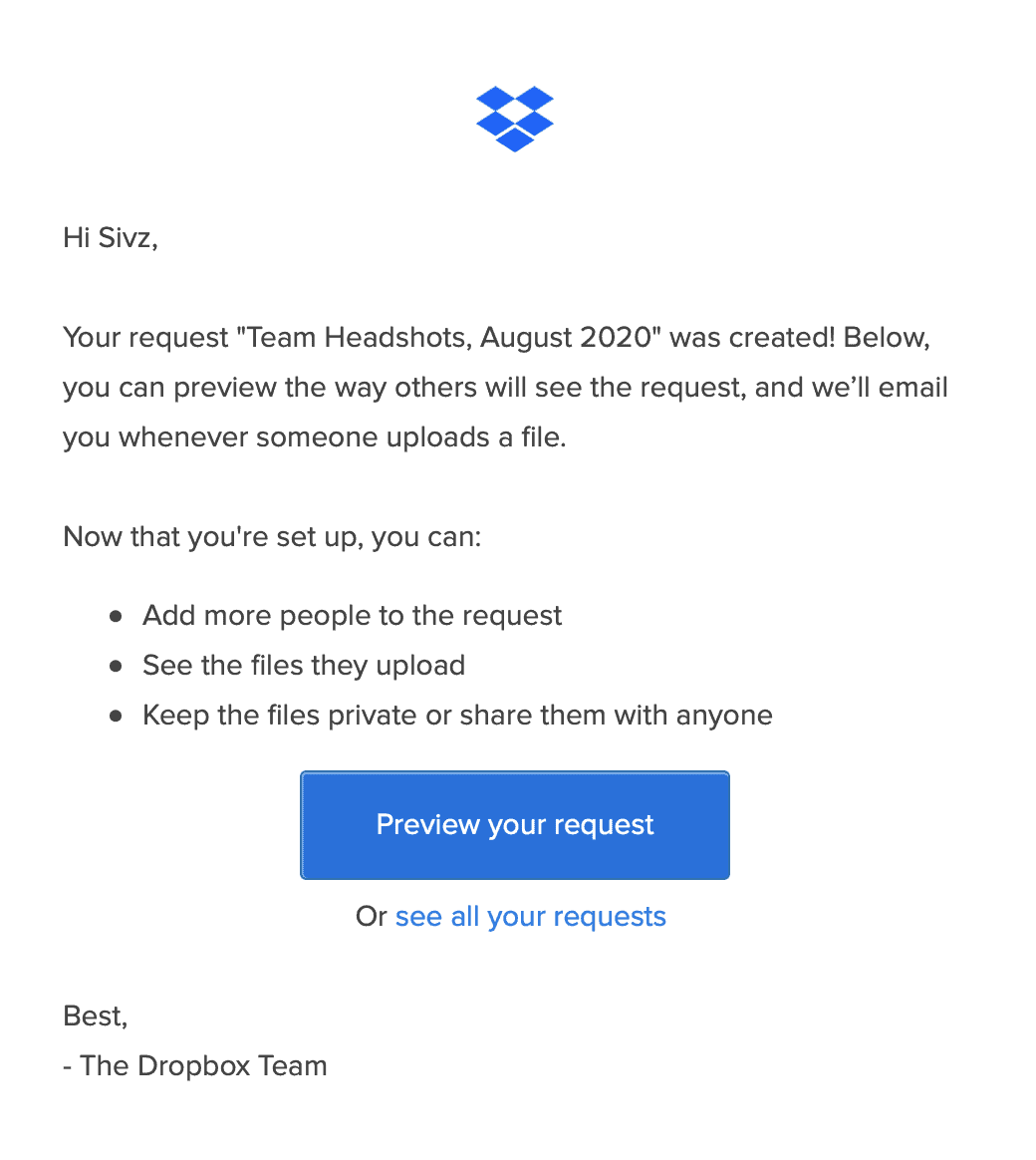
You’ll receive an automatic email from Dropbox confirming you’ve created a file request and giving you the option to preview it if you’d like. This is what it will look like.
This is also one of the simplest ways to send documents securely.
Once you have your new file request set up, a window will pop up titled “share file request”.
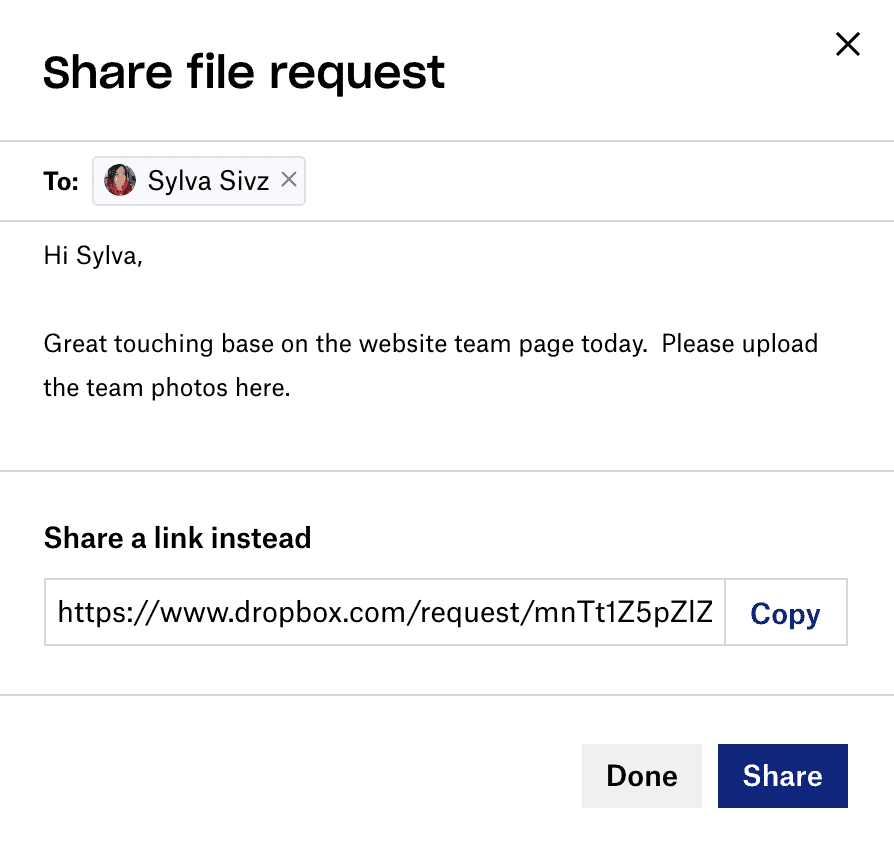
In the “add a message” space, you can add in an optional message for your clients. You might want to include one if your client isn’t familiar with Dropbox yet and you want to let them know this email is coming from you.
Then, you can share the file request in one of two ways:
To use this link, click the white “copy” button and the link will get copied to your clipboard.
You may want to share through the link instead if you plan on contacting your client or uploader via another platform like Slack or Asana.
Click the blue “share” button to send off your file request via email, or the white “done” button to close the window after you’ve copied the Dropbox file request link to your clipboard.
Related: How to use OneDrive file requests
Create a file request and realize you totally screwed up with embarrassing typos, forgot to add in the most important spec, or completely blanked on sending it to another member on your clients’ team? Whoops!
Don’t worry, you can still edit your file request even if you’ve closed off the file request window.
Here’s how to change your Dropbox file request:
Return to the “file requests” page in the Dropbox sidebar.
You will see a list of your “open” and “closed” requests.
Click on the three dots at the very end of the folder (or requests) row on the right.
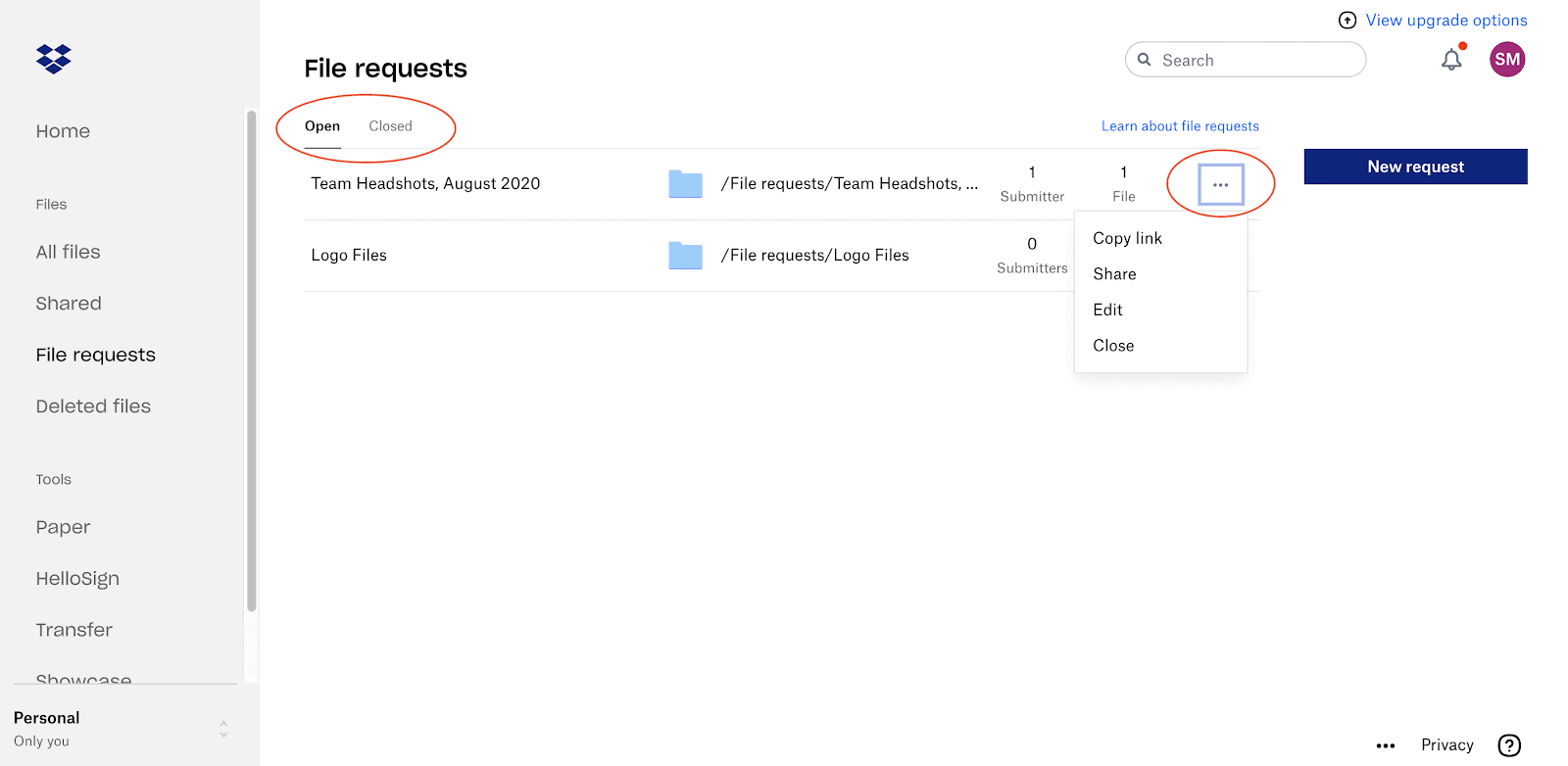
You will have the options to:
Click the three dots at the end of the row.
Select “re-open”.
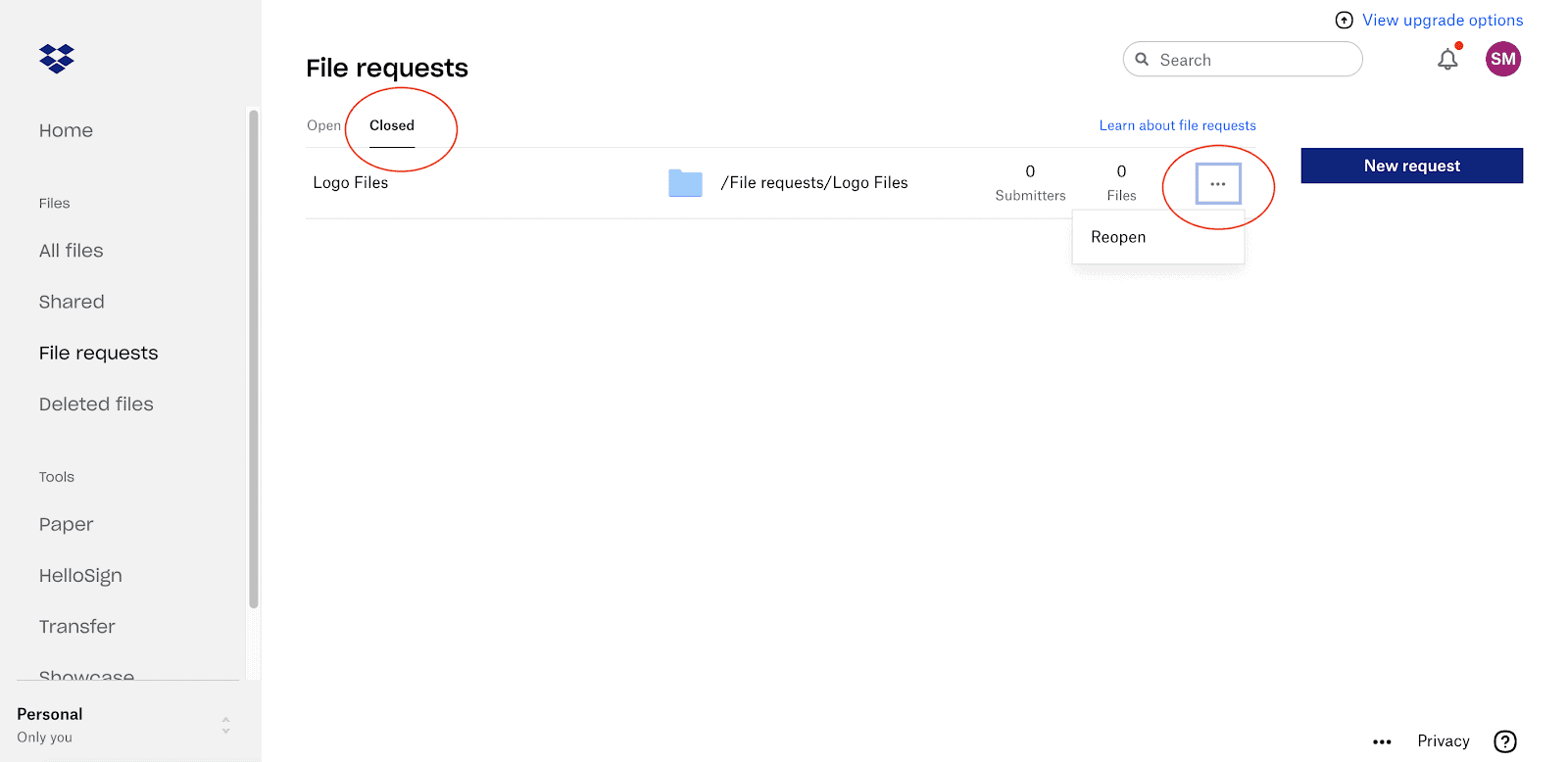
This will open your file request again, and move it to the “open” tab of your file requests.
Now let’s take a look at how this all works on your clients’ side.
If you’ve sent your client the request via email, they’ll receive an email from Dropbox that looks like this:
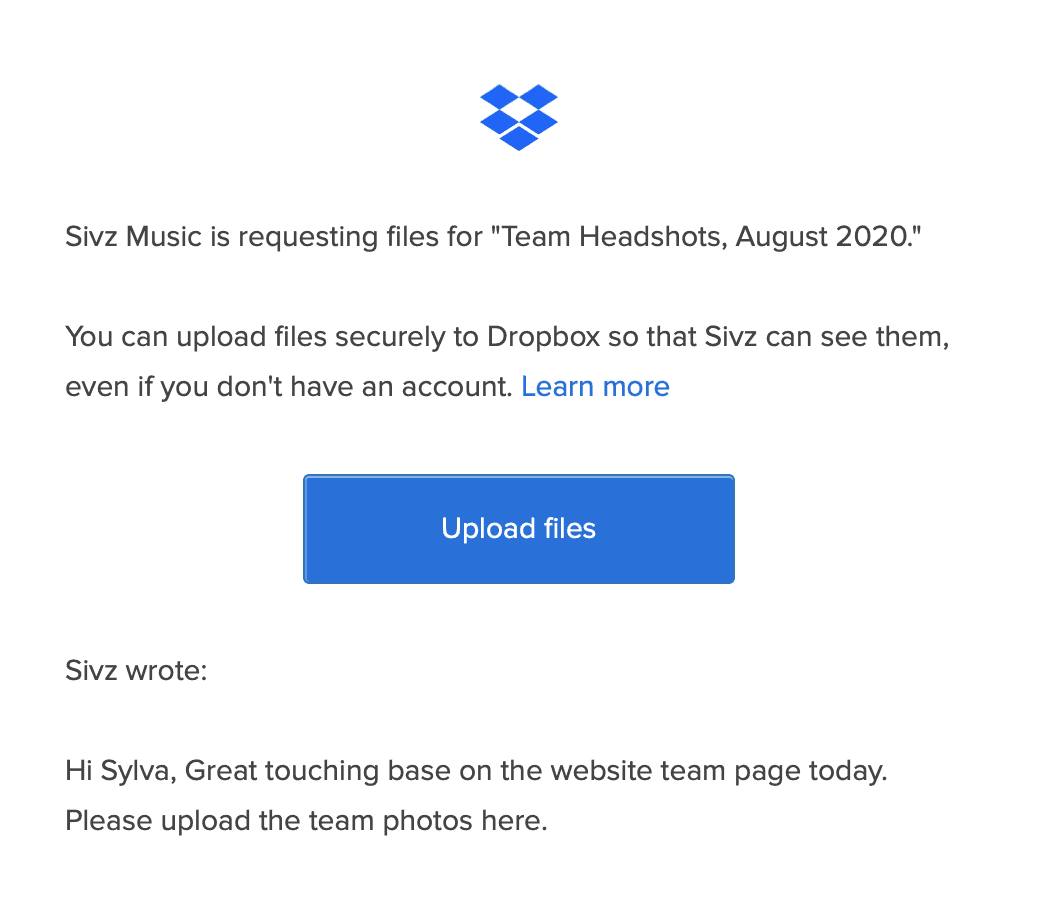
Whether they click the blue button in the email or access the link you sent over elsewhere, they’ll see your file request complete with the title the description you wrote in. It’ll look like this:
Your client can now upload to your file request by clicking on the “add files” button. It will give them the option to search for and upload:
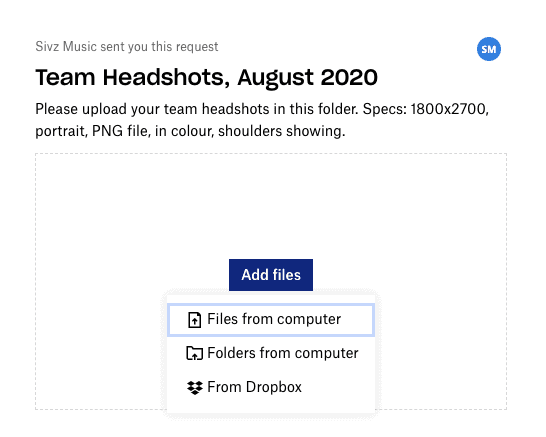
They can also drag and drop files from their computer over the Dropbox window.
Once your client has selected their files, the window will look like this:
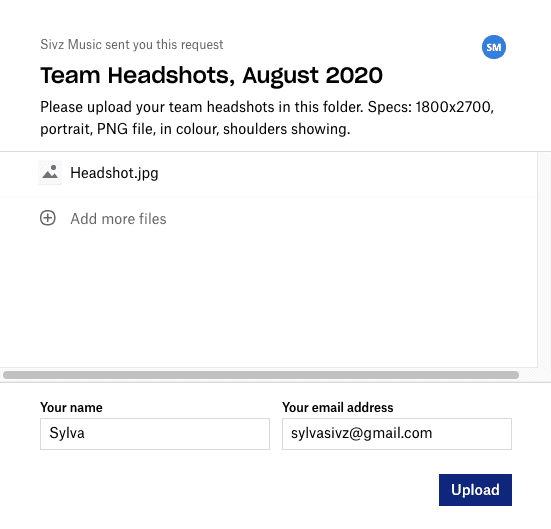
While they won’t need a Dropbox account to upload documents, they will need to leave a name and email address in the field at the bottom.
Once they hit the blue “upload” button, they’ll get a confirmation that their files went through.
Should they have missed a file, they still get the option to upload more files.
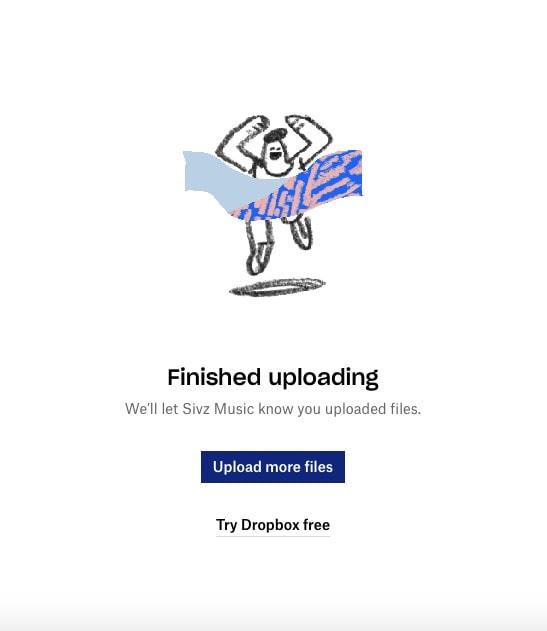
They’ll also get an email confirming what they uploaded.
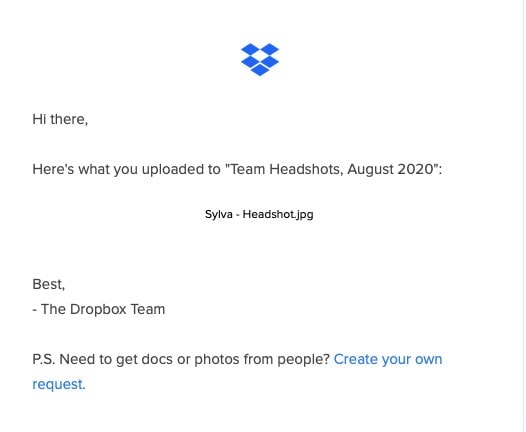
Once your client uploads their files to your file request, you’ll get an email from Dropbox letting you know. It’ll look like this and will invite you to view the files:

And boom! You’ll see a list of the files your client has uploaded on your file request page.
Once you’re in there, there are a couple of actions you can take by clicking on the three dots on the far right.
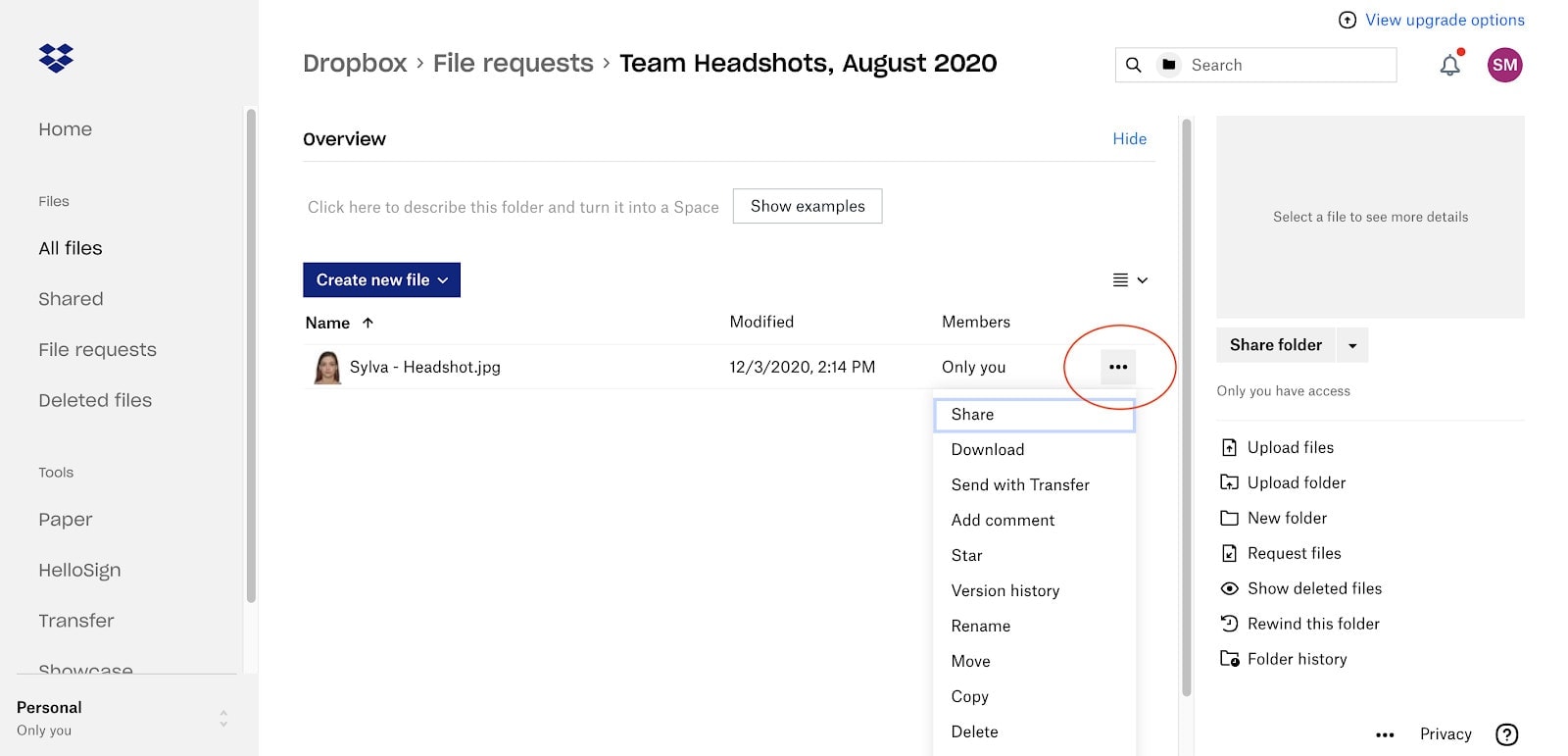
You can:
When you leave a comment, it will notify your uploader.
Compared to some other shared drives, we think Dropbox is really great for receiving files because it has a simple interface, doesn’t require uploaders to have a Dropbox account, and has a specific file request feature.
There are a few things to keep in mind if you want to use Dropbox to receive files though:
If a client uploads the wrong version of a file, you’ll have to leave them a comment and hope your client notices Dropbox’s automatic email with your comment, or take matters into your own hands and follow up with the client over email. Bit of a time-waster.
So if you’re going with a free or cheaper plan, you’ll want to stay on top of cleaning up your files and deleting those you no longer need to make sure you still have the space to collect files.
Compare Dropbox storage and pricing to other shared folder options here.
If you’re worried about any of these Dropbox disadvantages, then you might want to consider another, more all-encompassing tool for collecting files. And you betcha, it’s our very own!
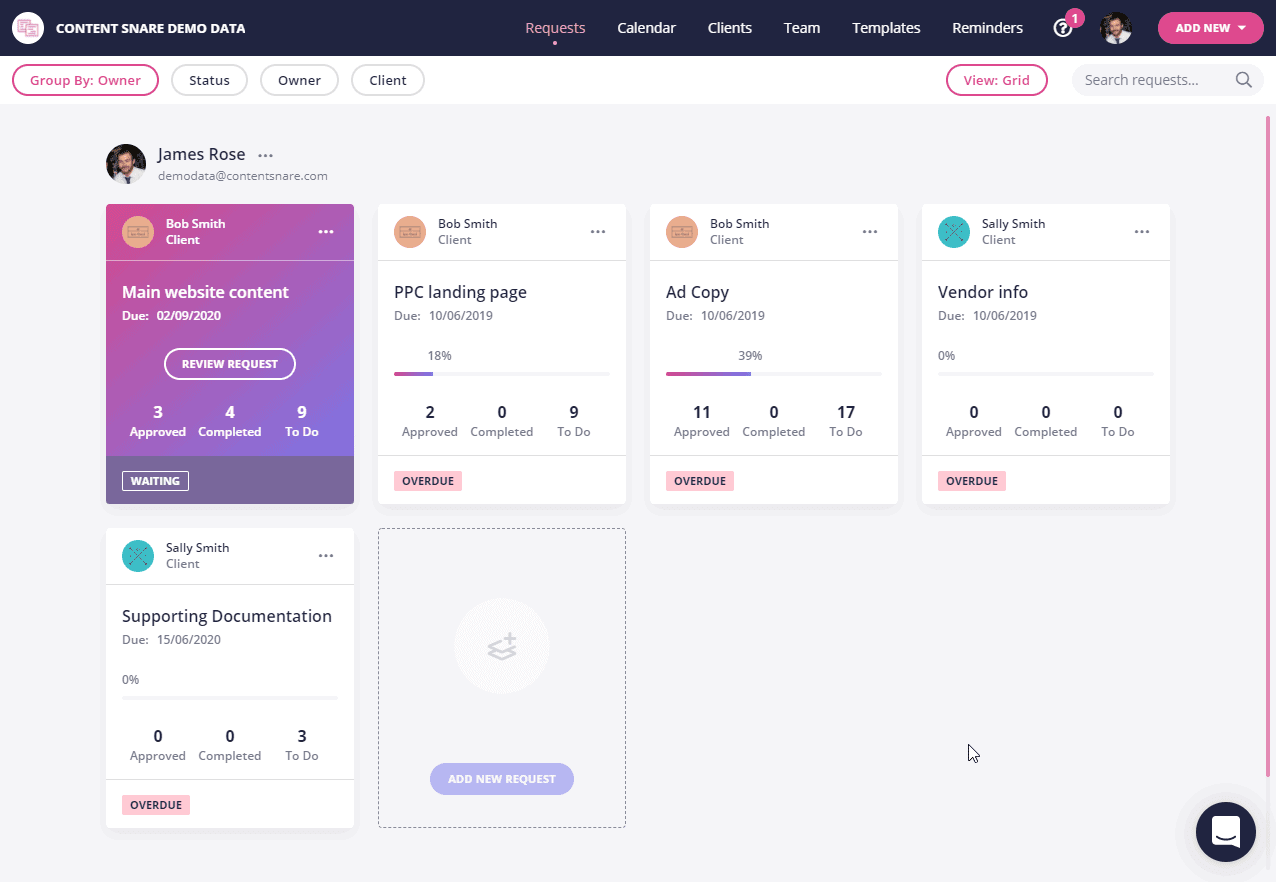
We built Content Snare to overcome the most common limitations of shared drives and traditional forms. Here are some features of the platform that will make your life easier when it comes to requesting files:
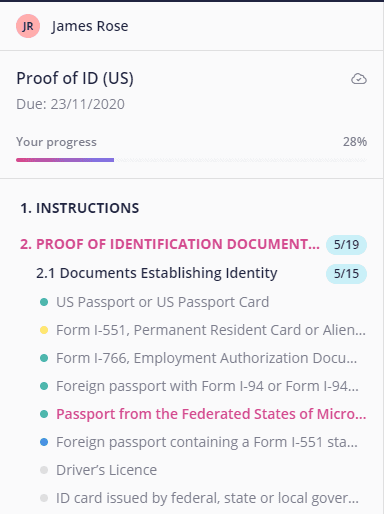
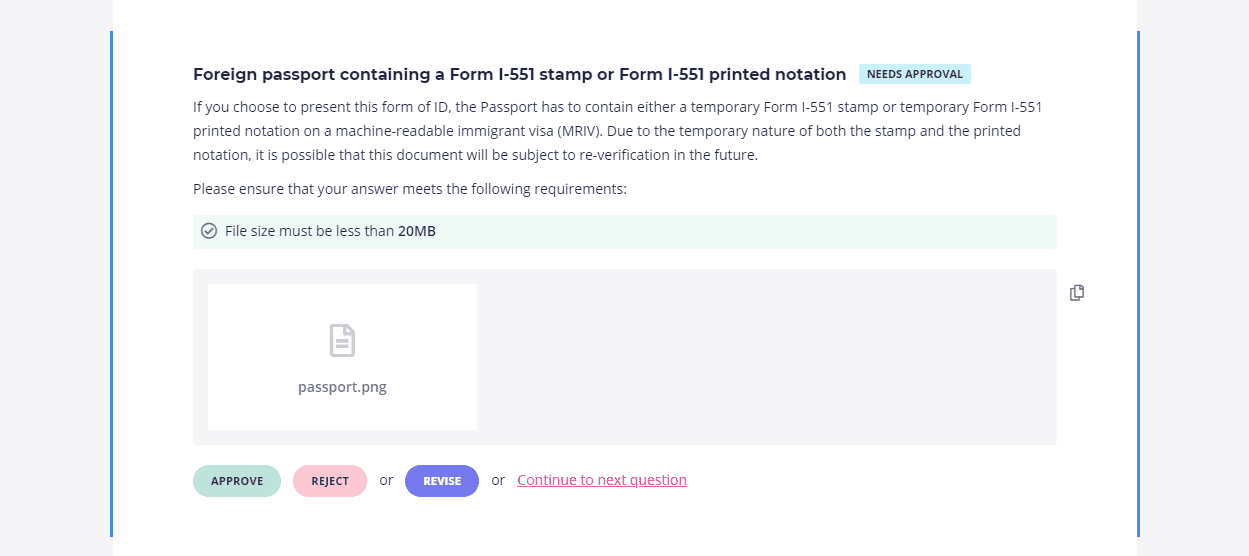
Since you can usually spend a good 10 minutes at a time on reminding clients over email, this is another huge time saver when you add it all up!
If you’re thinking about switching to Content Snare and have any questions, drop us a comment and we’ll be sure to answer.

Sylva Sivz is a seasoned copywriter here at Content Snare, based out of Vancouver, Canada. She has spent years working in agency environments and moonlights as a touring house DJ!


Hi Sylvia, your page is great! Just wanted to mention that I tried to edit an existing request, and I think it might be a Pro-only feature ... I didn't have that option. Cheers, Lisa
Hey Lisa - editing requests can be done on any plan. On the dashboard, click in the three-dot menu for the request you want to edit, then click edit. Changes you make are saved as you go.