


Google Forms and SurveyMonkey are popular options in the online form-building niche, but popularity is one of the rare things they have in common.
The former tool comes from Google, a tech giant that can afford to add a free form builder to its portfolio. On the other hand, SurveyMonkey comes with a pretty hefty price tag, but compensates by providing a much broader scope of functionalities.
We tested both platforms to compare their capabilities and make a detailed overview of SurveyMonkey vs Google Forms.
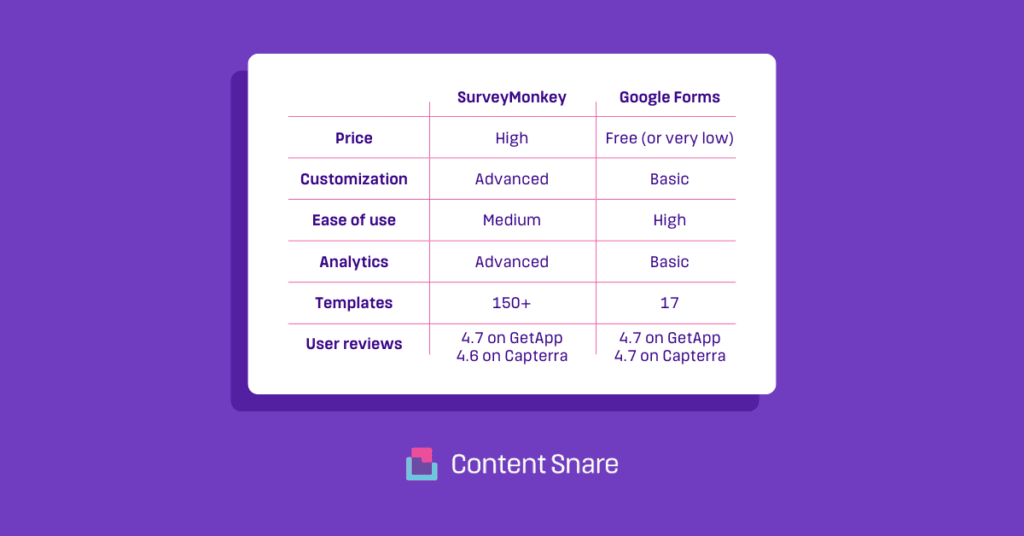
Before we get into the specifics, here’s a visual overview of what you’ll get from both tools.
You can quickly access Google Forms as it only asks for your email address (not necessarily Gmail) and password. For the sake of this post, we played with a course evaluation template — it’s one of only 17 templates currently available in Google Forms:

You can see right away that the dashboard is fairly simple and easy to navigate. The template features only eight questions, but you can use the menu on the right to add new fields, import a list of ready-made questions, or include images or videos.
| Note: The platform offers only 11 question types, but it should be enough for most types of questionnaires. |
The customization icon is at the top, so you can click on it to open a menu and tailor your theme by setting up text styles, header images, and colors.

Google Forms lets you adjust response settings with validation, file upload size limits, editing, required questions, and so on. The branching logic is straightforward — click a dotted menu in the bottom right corner of a question to redirect users to go to the desired section based on their answer.
Related: The best Google Forms alternative in 2024
As soon as respondents start submitting their answers, you’ll see them in the Responses tab at the top of the dashboard:

Once there, you’ll find simple reports with intuitive pie charts and graphs that can help you make data-driven decisions. You can also link the form to Google Sheets for easier data management.
The biggest advantage of Google Forms is that you can use it for free (though this comes with certain limitations). The main features of Google Forms are as follows:
The alternative is to sign up for one of the Business plans to access an entire Google Workspace suite along with Forms. In this case, you’ll see the following options:
The difference between free and paid plans is that the business packages give you more cloud storage space (2 TB per user), the option of using custom business email, and centralized admin controls.
Related: Google Forms vs Microsoft Forms: Who has the upper hand?
SurveyMonkey offers a wide range of pricing plans for individuals and organizations, but you can sign up for free to test the basics. Once you’re there, it won’t take long for you to realize that this tool is more complex and feature-rich than Google Forms:
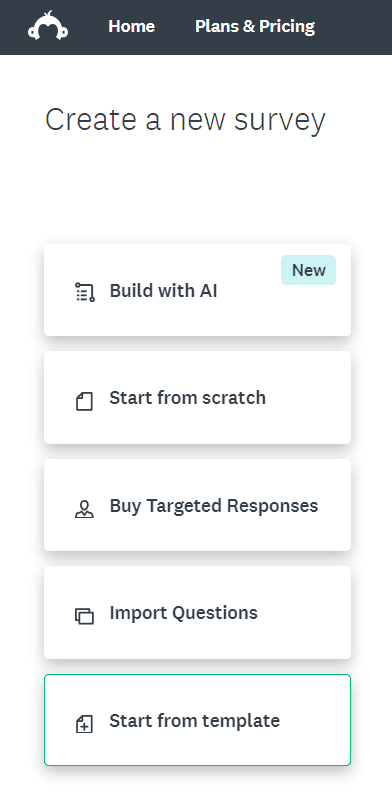
You can build a form from scratch, import questions, or use a template (150+ ready-made solutions). Bear in mind that similar options are available in Google Forms too. However, SurveyMonkey gives you a couple of extra options:
For the sake of this article, we decided to stick to the same subject and use a built-in Course Evaluation template. The first impression is that the dashboard is somewhat cluttered, but that’s because SurveyMonkey lets you customize almost every element:

You’ll find many ways to tailor the form on the left side of the dashboard, so feel free to try out different options.
| Note: A free version of SurveyMonkey is very limited feature-wise. Should you wish to test all features, you’ll have to pay for one of the premium plans. |
For one, SurveyMonkey offers more than 20 field types: from standard questions (name, email, address, etc.) to advanced options such as the Click Map or A/B testing through text or images.
Secondly, the system is much more versatile than Google Forms in terms of using branch logic — you can count on page or question randomization, custom variables, page skip logic, and so on.
Related: The best SurveyMonkey alternative: Top 7 picks
Design-wise, there’s little you can’t do with SurveyMonkey. For example, it’s possible to customize simple elements like logos, fonts, footers, and background colors. More importantly, you can create a branded theme or use/edit one of 20 built-in themes.
In addition, SurveyMonkey lets you collect responses in many different ways:
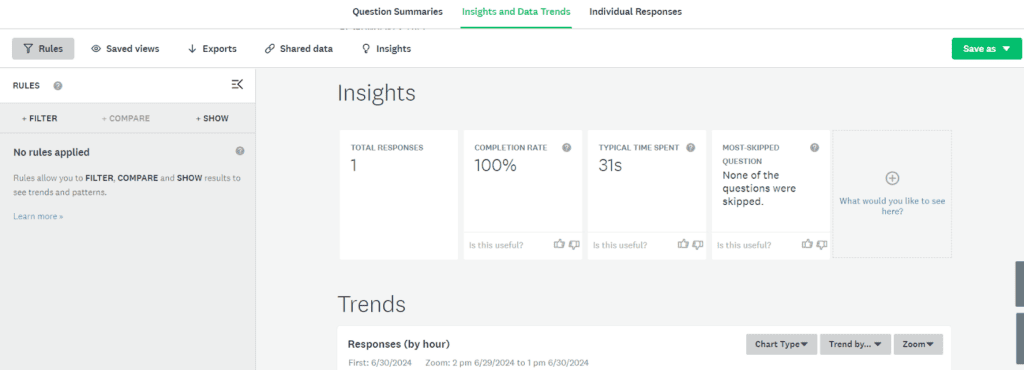
In each case, the system will notify you as soon as the first responses come in. SurveyMonkey will give you a clear overview of all answers submitted along with in-depth insights and data trends:
This is SurveyMonkey in a nutshell, but now it’s time to check out its pricing plans and the corresponding functionalities.
This tool has a variety of pricing plans for different types of teams and individual users, but let’s explore its free plan first.
If you opt for a free basic account, you can create surveys with up to 10 questions and use a few of the simplest question types. In reality, this isn’t enough to create solid online forms and collect enough responses, but rather a way to get a glimpse of SurveyMonkey without paying for it.
For anything more than that, you need to sign up for one of the paid plans:
| Note: Prices may change over time, so make sure to check them on SurveyMonkey’s official pricing page. |
Some of the features available in paid plans are mentioned above, but it’s impossible to list all of them. That’s why we’ll point out only some of the most impressive options that come with these packages:
Bear in mind that Enterprise is the only plan that allows an unlimited number of surveys and responses. For example, Team Advantage enables 50,000 responses per year — every additional response will cost you $0.1.
You should have a pretty good idea of what these tools are all about by now, but here’s a quick recap.
Google Forms makes it easy to create and share online forms with minimal effort, which makes it an excellent choice for more casual or less complex survey requirements. It also integrates with other Workspace apps like Google Docs, making it easy to share and collaborate on surveys.
This makes Google Forms the go-to option for individuals, educators, nonprofits, and small teams.
However, users who require advanced survey functionalities with extensive customization will find SurveyMonkey to be a better choice. It’s a good option for businesses willing to pay for branded forms with in-depth survey capabilities.
These two platforms can successfully fulfill most of your form-building requirements, but they are designed mainly for bulk data collection. In other words, SurveyMonkey and Google Forms aren’t ideal for creating highly customized client-focused online forms.
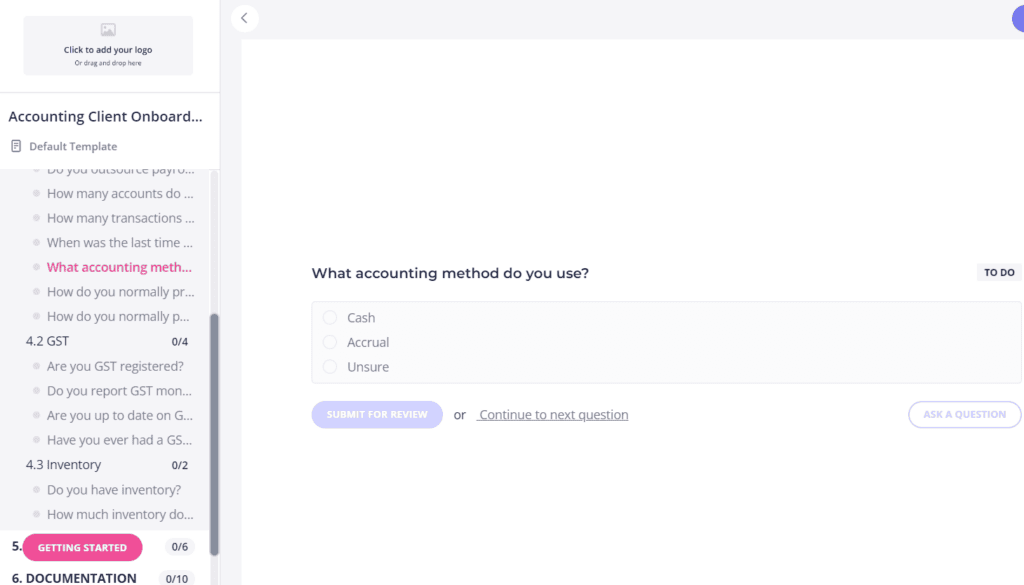
Content Snare is a better option in this case because it helps you create unique questionnaires with specific fields and instructions for individual clients:
Our forms proved to be ideal for digital agencies, accounting practices, law firms, real estate companies, and all the other service-oriented organizations that frequently cope with information bottlenecks. On average, Content Snare users spend 71% less time collecting data and content from their clients.
Related: How this bookkeeping firm saves over $1000 per client with Content Snare
Content Snare helps you build long-lasting client relationships through effortless onboarding and communication, especially if you have to gather a lot of information in the process. It speeds up the process by:
With so many specific features, Content Snare is the best alternative to Google Forms and SurveyMonkey if you’re hoping for tailored communication with individual clients. If this sounds like your cup of tea, sign up for a free 14-day trial right now.

Dražen Vujović is a journalist and content writer. More importantly, he is a father of two and a long-distance runner.


