


When it comes time to show your clients what their website looks like before going live, it can cause a lot of extra work. The best way we’ve found is to upload the website to a development server. Here the client can see exactly what the website will look like. It seems this is a much better option than screenshots, videos, live demos and other methods. This requires someone to spend the time moving the website to an accessible server so that you can give your client a URL. That’s tedious, boring work. No thanks. The way we used to do it, and the way I’ve seen a lot of other web design companies preview their websites is to create a new subdomain or WordPress install on their existing server. Some people have all of this streamlined to make it easy. Most don’t.
Thankfully, there is a web host which makes the process of duplicating a website onto a unique URL really easy.
This is now how we preview all our client’s websites.
To do this, we use Cloudways. There are a whole lot of reasons why.
We even use Cloudways for our company site hosting (like this site). Because:
I had their website up while writing this post, and saw this line:
Cloud Hosting So Good You Will Kiss It
That’s not so far from the truth.

Anyway, back to how it makes client site previews so simple.
To set up a WordPress install, this is what you do.
That’s it. When it’s done you get the WP creds, FTP, and a unique URL on a “cloudwaysapps” subdomain. 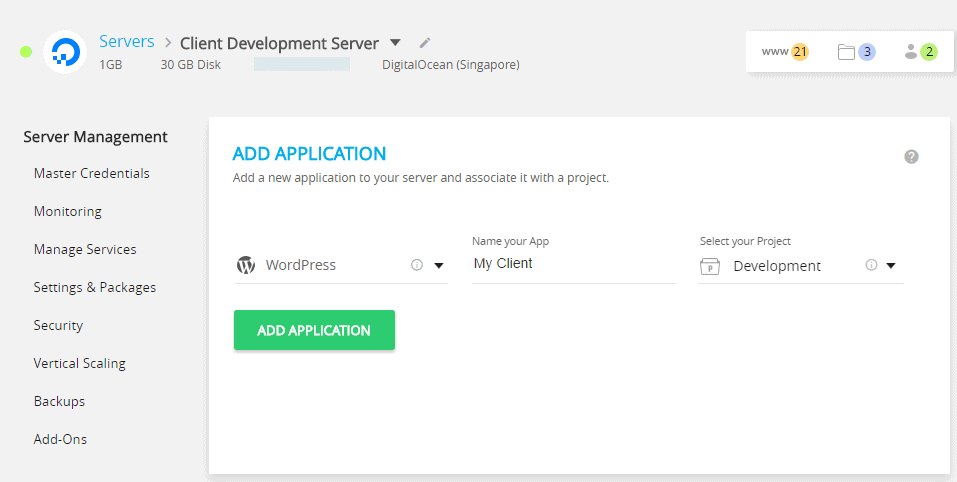 Tip: After WP installs, I like to go to “Application Settings” and give the “Folder” a more meaningful name to match the website. Another Tip: Create a server just for your client development sites. Turn off Varnish at the server level so that you don’t run into caching issues when updating things.
If you have an existing site you want to push info that hosting, all you need to do is:
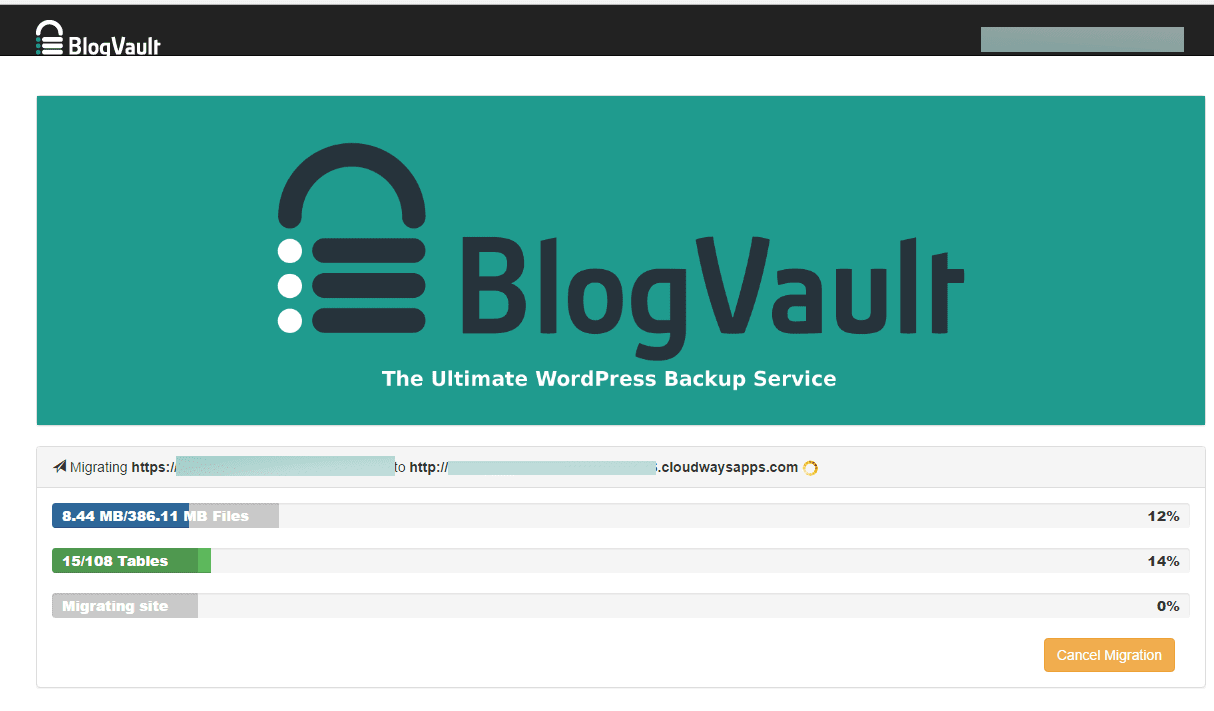 A few minutes later, the site is on Cloudways. So freaking easy. For the tech heads, it supports Git deployment as well. If you can’t tell by now, I’m pretty excited by Cloudways. It’s one of the few tools I’ve ever found where I got crazy excited the first day I found it (number 1 is still ActiveCampaign). Jump over to Cloudways and create an account. You can create your first server for free for 30 days while you get set up and play around.

James is the co-founder of Content Snare - a software platform that helps professionals collect content & files from clients.
Once an automation engineer, his new priority is to help business owners regain their lives, be more productive and get more done in less time.


I. Completely. Concur.
As Nacho Libre would say, "It's the best!"
Haha love it 🙂
Thank you James for your valuable resources keep share the information like this…
Definitely, its all makes sense and very useful. I'll try out with clients