



It’s always great news when you sign a new client, and then comes the process of requesting files from them. That part can be a real pain in the a**. In our experience working with hundreds of accounting and legal firms, this process alone can consume up to 5 hours per week per client engagement.
If you’ve traditionally used email to receive files, you’ve likely run into some issues with file size limits or lost your attachments in never-ending email threads. For those reasons, using shared folders like Google Drive is one of our recommended ways to request files from clients.
If you’re considering using Google Drive to receive files from your clients, here’s a little bit about how to set up your shared folder and some considerations for using Google Drive. You’ll find out that your clients will need a Google account to be able to upload files easily, and so we’ve also offered a couple of alternatives that don't require your clients to sign in.
How to make file requests in Google Drive
Once you’re logged into your Google Drive account, hit the “new” button at the left of your screen.
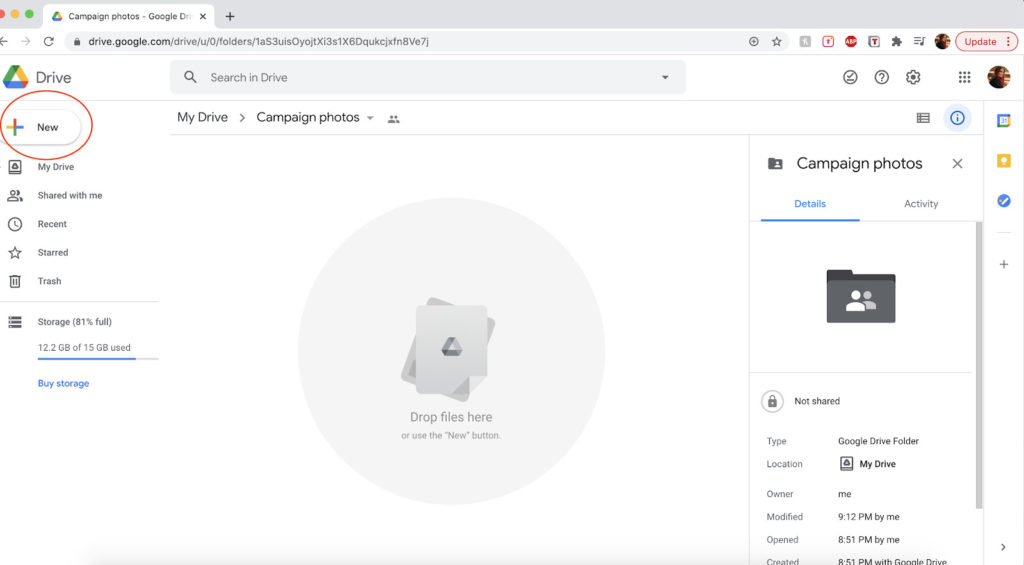
Select “folder”.

A prompt will ask you to name this new folder. Name it, and hit “create.”

Once this folder is created, click into it within your Google Drive to open it up.
Click the down arrow beside the folder name. Click “share”.

A prompt will ask you to share the folder with people and groups. You can share the folder one of two ways:
Share by email
Type in your contact’s email address in the given field. When you do this, a checkbox will open up asking you if you want to notify people that they’ve received a folder.
You’ll also see a space to type in a message about what you’re sharing. Here’s a great place to include instructions for your client. You’ll want to be as specific as you can be to avoid any back and forth if they upload the wrong file.
Hit send.

Share by link
Hit “copy link”.
This will copy a link to the folder to your clipboard.
If you hit “change to anyone with the link”, a new link will generate that is accessible to anyone on the internet you sent the link to. You can copy this link to the clipboard.

Your client will receive an email letting them know they’ve been invited to contribute to the shared folder.
Limitations of using Google Drive to receive files
Seems easy peasy, right? But here’s what’s important to know:
If they have a Google account, they’ll click “open” and see the folder the same way that you see it, with options to upload files and folders.

BUT
If they don’t have a Google account, this is what they’ll see:

The problem with using Google Drive shared folders for receiving files is that your clients need to have a Google account to be able to upload.
Ideally, you want to go with a document collection tool that’s barrier-free for your clients. When you make matters easy for them, you also make life easy for you by avoiding delays.
For businesses that regularly collect sensitive client information — like accounting firms, legal practices, or digital agencies — this kind of friction can lead to project delays, errors, or frustrated clients.
That’s why many companies turn to secure document collection platforms like Content Snare, which eliminate these barriers entirely.
How to receive files on Google Drive from anyone
How can you receive files in your Google Drive shared folders if your contact doesn’t have a Google account?
Well, there isn’t exactly a straightforward way, but there is a workaround for doing this.
File upload forms for Google Drive
You can receive large files on Google Drive from people without Google accounts when you use file upload forms. These let form respondents bypass the need to log in anywhere.
This resource walks you through exactly how to use Google Sheets to set up a file upload form. You can also watch the YouTube video if you find that easier to follow.
Just be warned that there are actually quite a few steps to going with this process, from copying code to designing the form, and having to type up your own confirmation emails. If you go with this workaround, you’ve got to be willing to put in the work!
Alternatives to Google Drive shared folders
Since Google Drive file requests come with some limitations and not-so-simple workarounds, you might want to consider going with something different.
We explored a bunch of ways to request files from clients in a previous post, but here is our top pick:
Content Snare
If you’re looking for an all-in-one solution to requesting files that can also help you manage client communication like email reminders, then Content Snare is the way to go (yes yes, now’s the time for our shameful plug!).
Trusted by over 1,600 businesses across 62 countries, Content Snare is built specifically to solve the challenges of secure client document collection, offering ISO 27001 certification and military-grade encryption to protect sensitive data. The platform has been featured by industry leaders like Xero, GoDaddy, SmartCompany, WP Engine, and is one of the most highly-rated solutions on review sites like G2, Capterra, and the Xero App Store.
Here’s what you get when you use Content Snare:

- You can send a file request to any of your clients. They don’t need a Content Snare account to upload files.
- You can keep track of what files have come in and what files are still outstanding with built-in checklists in the platform.
- Client send in the wrong file? No need to send a bunch of back and forth emails. Content Snare gives you the option of approving or rejecting the files you receive as they come in.
- Rather than having to type out friendly reminder emails, you can use Content Snare’s pre-written reminder emails to do all the nagging you need to do. You can even set up time periods for the tool to automatically check in with your clients.
- As a secure client portal, Content Snare also lets you send files back to your clients, keeping everything in one place.
Here’s a user review from G2 that sums it all up nicely:

If all the above sounds appealing, you can take Content Snare for a spin with a free 14-day trial.
FAQ
How secure is Google Drive for client document collection?
Google Drive offers encryption and access controls suitable for general business needs. However, it isn’t designed specifically for regulated industries that require detailed audit logs, granular permissions, or compliance with relevant security standards. For highly sensitive data, consider specialized platforms with ISO 27001 certification, such as Content Snare.
What is the best way to collect documents from clients without requiring a login?
Using dedicated document collection software is the most reliable approach. Content Snare enables clients to upload files through secure links without creating accounts, while automating reminders. That way, the system reduces friction and helps maintain a consistent, professional experience.
